Claude’s Notes Connector for macOS turns your Apple Notes into a powerful, AI-enhanced workspace. By integrating directly with the native Notes app, Claude can create, edit, search, and organize your notes through simple prompts. Whether you’re capturing ideas, updating lists, or summarizing meeting notes, Claude acts as a second brain, streamlining your thinking and turning raw input into structured, usable insights.
In This Article
Share On:
How Claude’s Notes Connector Turns Your AI into a Second Brain
Let Your AI Think in Notes
From to-do lists and journaling to quick reminders and meeting takeaways, Apple Notes is often the default tool for capturing ideas across macOS devices. But what if your AI assistant could access those notes, update them in real time, and even help you structure your thinking?
Thanks to Claude’s new Notes Connector for macOS, that’s now possible.
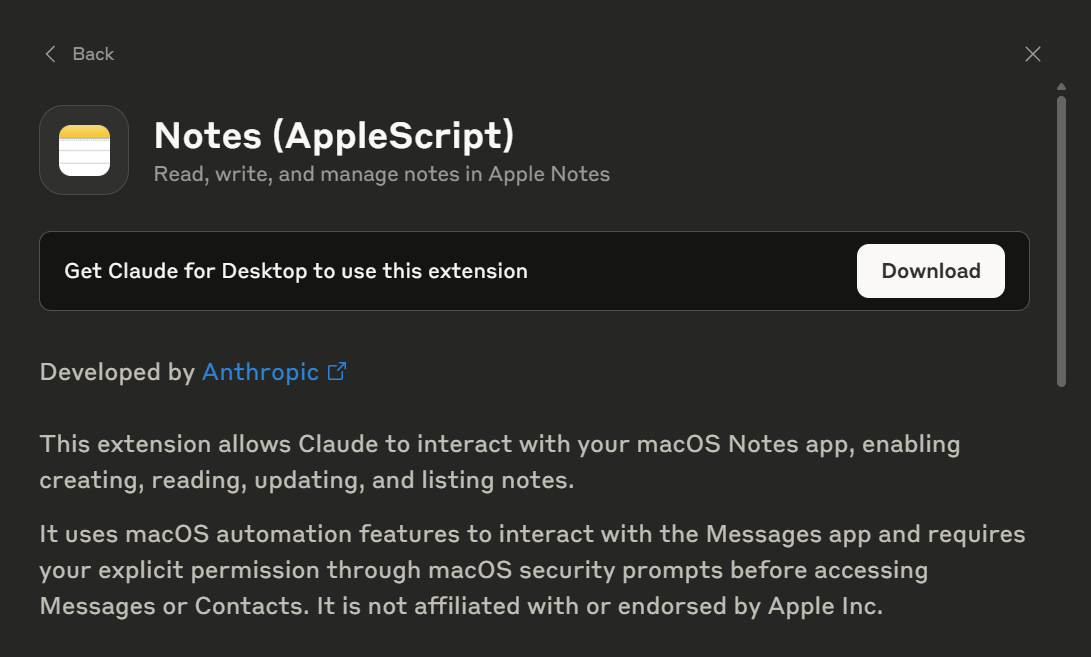
This integration allows Claude to interact directly with the Apple Notes app. It enables a range of actions, including creating, listing, reading, and updating notes. Whether you’re brainstorming, preparing for meetings, or just organizing your week, Claude now helps you manage your thoughts as you go.
Let’s walk through how to connect Claude to Notes, explore practical prompts, and understand why this context-aware integration enhances your productivity.
Getting Started: How to Connect Claude to Apple Notes
To use the Apple Notes Connector, you must:
Be on Claude’s Pro or Team plan.
Have Claude installed on the desktop (macOS).
Grant permissions to allow Claude to use system-level AppleScript for accessing Notes.
Once connected, Claude can begin interacting with your Notes through simple, natural language prompts.
Exceptional Ways to Use Claude + Notes
Claude does more than fetch or store notes. It understands context and can help you organize, update, and retrieve information across your digital workspace. Here are real-world use cases with prompt templates:
1. Quick Capture and Note Creation
A) Prompt: “Create a new note called ‘Team Feedback’ and write: ‘Customer support praised Priya’s response time during the last sprint.’”
Claude will: Create a new note titled “Team Feedback” and populate it with your content.
B) Prompt: “Add a note for today’s journal entry. Title it ‘Reflection’ and write: ‘Felt more focused after taking a midday walk.’”ทดลองเล่นสล็อต
Claude will: Create a note with a timestamped journal entry and organize it under the correct folder if specified.
2. Update and Edit Existing Notes
A) Prompt:
“Find the note titled ‘Marketing Ideas’ and add: ‘Run A/B tests for new CTA copy.’”
Claude will: Locate the note, append the new idea at the end, and confirm the update.สล็อต
B) Prompt:
“Update the note ‘Grocery List’ and change ‘bread’ to ‘gluten-free bread.’”
Claude will: Fetch the note, find the keyword, apply the change, and save the updated note.สล็อตเว็บตรง
3. Search and Retrieve Notes by Context
A) Prompt: “Find the note about ‘client onboarding checklist’ and read it back to me.”ufabet911
Claude will: Search for notes with that title or related keywords, retrieve the content, and display it inline in your chat.
B) Prompt: “List all notes from this week that mention ‘standup’ or ‘project Alpha.’”
Claude will: Filter recent notes using date and keyword context, then present them as a summary or list.
4. Use Notes in Other Workflows
A) Prompt: “Summarize the note titled ‘Meeting Notes – July 12’ and draft follow-up points.”
Claude will: Analyze the note, extract action items, and generate follow-ups you can send via email or a task manager.
B) Prompt: “Create a task list from the note titled ‘Product Launch Plan’ and sort by priority.”
Claude will: Convert your unstructured list into a task-based format, organized by keywords like ‘urgent’, ‘next’, or deadlines.
Why This Integration Matters?
Most note-taking tools remain passive. They store content but do little to help you organize or act on it. Claude’s Notes Connector changes that.
By integrating with Apple Notes on macOS, Claude becomes an intelligent layer that helps you:
Capture thoughts in real time.
Revisit and reorganize notes without manual searching.
Claude’s integration with Apple Notes transforms how you capture, organize, and act on information. Instead of sifting through scattered thoughts or manually managing lists, you can now ask your AI assistant to create, retrieve, and update notes using natural language.
Whether you’re journaling ideas, tracking daily goals, or summarizing meetings, Claude helps you turn unstructured input into explicit, accessible knowledge. This isn’t just smarter note-taking — it’s the beginning of a more streamlined, AI-enhanced digital workflow where your notes become actionable assets.ดูหนังออนไลน์ 4k
Heads up: This is just one way Claude’s Connectors are reshaping how we work. Explore the complete Claude Connectors series.
Looking to design custom AI workflows for your team?
All Claude Connectors are designed with consent and control in mind. Claude never accesses third-party tools or data without your authorization, and you can view, manage, or revoke access at any time.สล็อตทดลองเล่นฟรี
Q1: Is the Notes Connector available on Windows or iOS? Currently, the integration works only on macOS through Claude for Desktop.
Q2: Do I need to use the native Apple Notes app? Yes. This Connector is built explicitly for macOS’s built-in Notes app.ทดลองสล็อต PG
Q3: Can Claude access notes stored in iCloud? Yes, if iCloud Notes are synced to the native Notes app on your Mac, Claude can access them like any other note.
Q4: Does Claude read or modify notes on its own? No. Claude only interacts with notes when prompted. All actions are transparent and require your initiation.
Q5: Is this safe to use in a work setting? Yes. As long as you follow your organization’s device security policies and keep Claude’s permissions limited to your use case, this is a secure integration.
For Curious Minds
The Claude Notes Connector is a powerful integration that grants the Claude AI assistant direct, real-time access to your Apple Notes. This connection transforms your notes from a passive repository of information into a dynamic, interactive workspace managed by AI. Unlike basic tools that just copy and paste text, this connector uses system-level AppleScript to perform specific actions, making it an active participant in your workflow. This deep integration is what allows Claude to become a true 'second brain' that understands context.
The connector enables four primary functions:
Create: Instantly generate new notes from a simple prompt, like asking it to create a note called ‘Team Feedback’ with specific content.
List: Ask Claude to find and display all notes from the past week that mention a specific term, such as ‘project Alpha’.
Read: Have Claude retrieve and display the full content of a specific note, like a ‘client onboarding checklist’.
Update: Make precise edits to existing notes, such as changing ‘bread’ to ‘gluten-free bread’ on a grocery list.
By building this functionality directly into the Claude desktop app for Pro and Team users, the tool closes the gap between thinking and doing. Explore the full article to see more advanced prompt examples.
To activate the connector, you must first have the Claude for Desktop app installed on macOS and be logged into a Pro or Team plan. The setup process is straightforward but requires you to grant specific permissions that allow the AI to interact with other applications on your system. These permissions are essential for enabling the automation that makes the tool so effective. The process involves navigating to the settings menu within the Claude app and explicitly enabling the feature.
Here is the step-by-step plan for implementation:
Install and launch the Claude for Desktop application from the official website.
Navigate to Settings and then select the Connectors menu.
Find the Notes Connector in the list and toggle it to the 'on' position.
You will receive a macOS security prompt. You must grant access to both Automation and Accessibility under your Mac’s System Settings.
Once these permissions are granted, Claude can begin executing commands related to Apple Notes. This setup ensures your notes are managed efficiently, as detailed in the complete guide.
This workflow demonstrates a powerful strategy for converting raw information into actionable tasks with minimal effort. By using a single prompt to find, read, and synthesize a specific meeting note, Claude automates a multi-step process that professionals typically perform manually. This moves beyond simple search; the AI contextualizes the content to extract key decisions and action items. This is a prime example of AI acting as a cognitive partner, not just a search engine.
The practical value is evident when you break down the time savings. Instead of manually scanning a long document for action items, you can use a prompt like “Summarize the note titled ‘Meeting Notes - July 12’ and draft follow-up points.” This approach has been shown to be effective because it:
Reduces cognitive load by offloading the task of synthesis.
Ensures no critical action items are missed.
Accelerates the transition from meeting to execution, shortening project timelines.
This method exemplifies how companies and individuals can use targeted AI prompts to structure their unstructured data, a theme further explored in the article.
Using the Claude Notes Connector offers a more integrated and efficient approach compared to the traditional, siloed method of managing tasks. The conventional workflow often involves jotting down ideas in Apple Notes and then manually copying them into a separate to-do app, a process prone to friction and lost context. The connector creates a unified workspace where ideation and planning happen in the same environment.
Consider the key factors when comparing these two approaches:
Efficiency: A single prompt like “Create a task list from the note titled ‘Product Launch Plan’ and sort by priority” is significantly faster than copy-pasting dozens of lines.
Context Preservation: Claude can interpret priority keywords like ‘urgent’ or ‘next’ directly from your notes, maintaining the original intent without manual re-categorization.
Reduced App Switching: Staying within the Notes and Claude ecosystem minimizes distractions and helps maintain focus, unlike juggling multiple applications.
The integrated method transforms Apple Notes from a simple scratchpad into the central hub of your project planning. Discover more comparative workflows by reading the full content.
This integration signals a fundamental shift from passive data storage to active knowledge management, where AI acts as a collaborator. Traditionally, tools like Apple Notes hold information, but the user is solely responsible for organizing, connecting, and acting upon it. The Claude Notes Connector introduces an intelligence layer that helps you structure your thinking in real time. This points to a future where your personal knowledge management (PKM) system is not just a place you put things, but an active partner that helps you use them.
Over time, this trend suggests that our digital tools will evolve to:
Anticipate our needs by surfacing relevant notes based on our current context.
Automate routine organizational tasks, like tagging and filing.
Synthesize information across multiple notes to reveal new insights.
The connection between Claude and Notes is an early but powerful example of this evolution, where the AI becomes a true 'second brain'. The article explores how this new paradigm is already changing daily workflows.
The connector directly addresses the problem of 'note chaos' by providing tools to impose structure on unstructured text instantly. The core issue for many users is that while capturing ideas is easy, the effort required to organize and process them later creates a bottleneck. Claude bridges this gap by interpreting natural language commands to reformat and synthesize your raw notes. This turns a digital junk drawer into a well-organized command center.
For example, a user might have a note full of jumbled thoughts from a brainstorm. Instead of letting that information sit idle, the connector provides a clear solution:
Problem: A disorganized note titled ‘Marketing Ideas’.
Solution: Use a prompt to “Find the note titled ‘Marketing Ideas,’ group ideas by theme, and create a bulleted list for each.”
Problem: A long, rambling journal entry.
Solution: Prompt Claude to “Summarize my journal entry from today, highlighting key emotions and insights.”
By making organization a simple, conversational step, the tool ensures that captured ideas are more likely to be used. Learn more about overcoming these common productivity hurdles in the full post.
These quick-capture prompts demonstrate Claude’s ability to minimize the friction between thought and documentation, which is critical for maintaining a state of deep work or creative flow. Every time you switch applications, hunt for the right note, and manually type an entry, you risk breaking your concentration. By handling these logistical steps with a simple voice or text command, the connector keeps you focused on the core task.
For instance, the prompt “Add a note for today’s journal entry. Title it ‘Reflection’ and write: ‘Felt more focused after taking a midday walk’” is a powerful example. Instead of a multi-click process, it becomes a single, fluid action. This provides proven value by:
Reducing cognitive overhead: You offload the 'how' of capturing a note and focus only on the 'what'.
Increasing capture velocity: Ideas are recorded the moment they arise, preventing them from being forgotten.
Lowering the barrier to entry: The ease of capture encourages more frequent and consistent note-taking.
This functionality makes Apple Notes a more immediate and useful tool for anyone whose work depends on capturing fleeting ideas. The full article showcases additional prompts designed to keep you in your flow state.
The connector’s advanced search goes beyond simple keyword matching by understanding temporal and conceptual context. When you ask Claude to “List all notes from this week that mention ‘standup’ or ‘project Alpha,’” it combines date filters with keyword recognition to deliver a highly relevant summary. This is a form of intelligent filtering that mimics how a human assistant would organize information for you.
This capability is particularly impactful for project management because it solves the challenge of information retrieval from a large volume of notes. A project manager can instantly compile a status update without manually searching through dozens of daily entries. The benefits include:
Rapid Synthesis: Quickly gather all relevant data points for a weekly report or meeting.
Improved Consistency: Ensure no critical updates or action items related to a project are missed.
Holistic Oversight: Gain a comprehensive view of a project’s progress by cross-referencing multiple notes at once.
This feature turns your entire note history into a searchable, intelligent database. The full text offers more ways to use these contextual queries to stay on top of your work.
The Claude Notes Connector directly bridges the gap between passive information and active execution by enabling multi-step, cross-application workflows. The core problem it solves is 'information inertia', where notes are collected but never used. By allowing you to summarize a note and immediately draft follow-up points, it turns stored data into an actionable starting point for other tasks. This transforms Apple Notes from a data graveyard into a launchpad for your daily work.
The ability to chain commands creates a seamless flow. For example:
You start with a note full of meeting minutes.
You use a prompt to have Claude analyze the note and extract action items.
You then use a follow-up prompt to have it draft an email or create a list for your task manager based on those items.
This integration ensures that the value of your notes is fully realized, preventing good ideas from being lost. By connecting your knowledge base to your communication and execution tools, the connector helps you close the loop on your work, a concept detailed further in the article.
The ability to perform precise, targeted edits is a significant differentiator that elevates the Claude Notes Connector above more basic AI tools. Many AI assistants can only add new information to the end of a note, which is a crude and often impractical way to manage dynamic content. True note management requires the ability to modify, not just append, which is what makes this integration feel like a genuine extension of your own thinking.
This editing capability is crucial for several reasons:
Maintaining Data Integrity: It allows you to keep lists, plans, and other documents accurate and up-to-date without manual intervention. A grocery list or a project checklist is only useful if it reflects the current state.
Enhancing Usability: It makes Apple Notes a more viable tool for managing evolving information, rather than just static text blobs.
Saving Time and Effort: Finding and replacing a specific item via a natural language prompt is far more efficient than opening the note, scrolling to find the text, and typing the change yourself.
This level of granular control is what makes the connector a powerful tool for real-world productivity. Discover how to apply this to more complex use cases in the full analysis.
An effective workflow for a consultant would center on using Claude to fluidly manage client information throughout the day. This approach minimizes administrative overhead and maximizes time spent on high-value work. The goal is to use natural language prompts to handle the entire lifecycle of a note, from creation to synthesis.
Here is a stepwise plan for a daily workflow:
Quick Capture: During calls, use prompts like, “Create a new note titled ‘Feedback - Client X’ and write: ‘They want to see new A/B test results for the CTA copy in the next report.’”
Mid-day Organization: Use a single command to collate information, such as, “Find all notes from today that mention ‘Client X’ and add them to the ‘Client X Project’ note.”
Meeting Preparation: Before the next client meeting, ask Claude, “Summarize the ‘Client X Project’ note and create a bulleted list of key discussion points and open questions.”
This process ensures all relevant information is captured, consolidated, and made ready for action with minimal manual effort. The full article provides more templates for professionals managing complex projects.
The use of AppleScript as the underlying technology for the Notes Connector is a strong indicator of future ambitions for deeper OS-level integration. AppleScript allows applications to communicate with and control one another, meaning the same principle could be applied to many other native macOS apps. This suggests a strategic move to position Claude not just as a chatbot, but as a system-wide automation and orchestration layer.
Looking ahead, this foundation could enable future connectors for:
Calendar: “Create a new event based on the action items in my ‘Project Alpha Kickoff’ note.”
Mail: “Draft an email to the marketing team summarizing my latest ‘Campaign Ideas’ note.”
Finder: “Find all documents on my Mac related to the ‘Q3 Report’ note and move them to a new folder.”
This would transform the AI assistant from a tool you consult into an agent that actively manages your digital environment on your behalf. The full article touches upon why this shift toward integrated AI is a critical trend to watch.
Amol has helped catalyse business growth with his strategic & data-driven methodologies. With a decade of experience in the field of marketing, he has donned multiple hats, from channel optimization, data analytics and creative brand positioning to growth engineering and sales.

 Growth Strategy and Planning