The Claude + Chrome Connector brings intelligent automation to your browser. By integrating with Chrome on macOS, Claude can read tabs, extract content, run JavaScript, and automate web-based tasks directly from natural language prompts. Whether you’re conducting research, managing open tabs, or automating workflows, this connector turns your browser into an intelligent productivity assistant.
In This Article
Share On:
How Claude’s Chrome Connector Simplifies Browsing, Research, and Tab Management on macOS through Claude Chrome Integration
What Is Claude in Chrome?
Claude in Chrome refers to Anthropic’s browser-based AI assistant that runs directly inside Google Chrome. There are two ways to use Claude in Chrome: through the web app at claude.ai (which works in any browser) and through Anthropic’s dedicated Chrome extension that enables Claude to interact with web pages you’re browsing.
The Chrome extension version, currently in beta, lets Claude read and interact with the page you’re viewing. You can ask it to summarize articles, extract data from tables, fill forms, navigate websites, and perform research across multiple tabs. It’s a browsing co-pilot, not just a chatbot in a tab.
Claude.ai web app is accessible at claude.ai through any Chrome browser. Sign up with email or Google account. Free tier gives limited messages per day. Pro plan ($20/month) gives extended usage, priority access, and early feature access.
Claude Chrome Extension (beta) adds a sidebar panel to Chrome. When enabled, Claude can see the content of your current tab and take actions on the page. This is different from just having claude.ai open in a tab because the extension has permission to read page content directly.
Claude Meets Chrome: What This Connector Unfolds
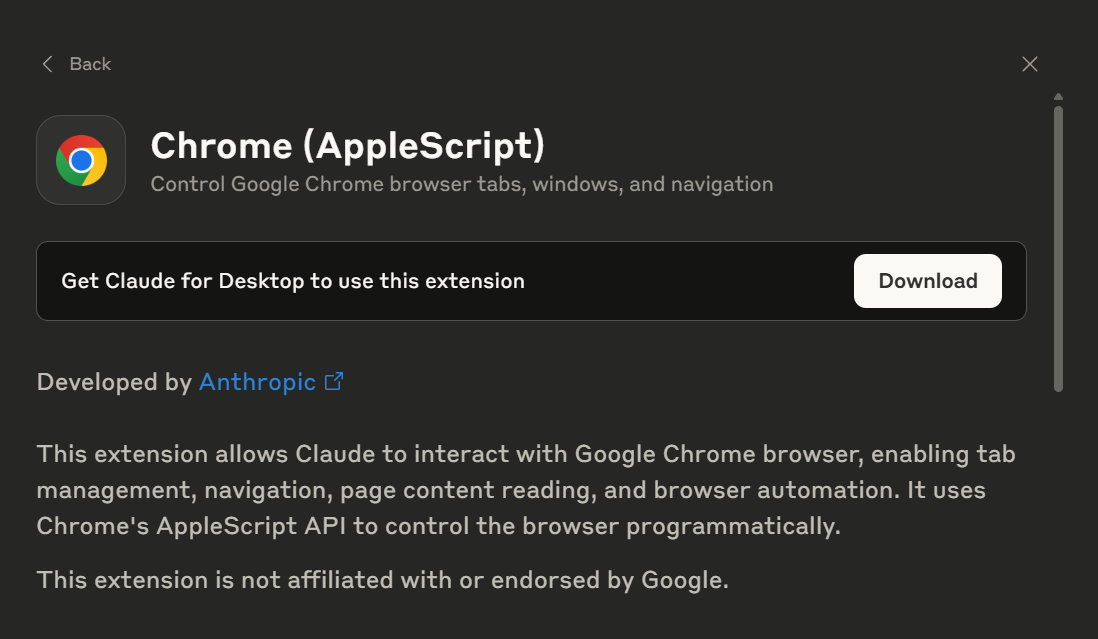
The Chrome Connector enables Claude to interact with your browser, programmatically managing tabs, navigating pages, extracting content, and executing JavaScript—all via natural language prompts. Whether you’re conducting research, managing dozens of open tabs, or automating web tasks, Claude can now act as your intelligent browser assistant.
Built using Chrome’s AppleScript API (for macOS), this extension runs locally and only performs actions when prompted, ensuring privacy and complete user control.
Getting Started: How to Connect Claude to Chrome
To use the Chrome Connector, you must:
With the Claude Chrome Integration, users can enhance their browsing experience by leveraging AI capabilities.
With the advent of Claude Chrome Integration, users can experience enhanced capabilities that streamline their online tasks efficiently.
Be on Claude’s Pro or Team plan.
Have Claude for Desktop installed (macOS only).
Enable permissions for Chrome automation via AppleScript.
Summarize Web Pages Open any article, research paper, or long webpage. Click the Claude icon and ask “Summarize this page.” Claude reads the full page content and gives you a concise summary. Works on news articles, documentation, blog posts, and most public web pages.
Extract Data from Pages Looking at a page with pricing tables, product specs, or financial data? Claude can extract structured information and present it in a format you can copy into a spreadsheet. Ask “Extract all pricing from this page” or “Pull the key metrics from this report.”
Research Across Tabs Claude can help you synthesize information from multiple tabs. Open several pages about a topic, then ask Claude to compare the information or create a summary across sources.
Fill Forms and Navigate The extension can interact with web pages, clicking buttons, filling form fields, and navigating between pages. This is useful for repetitive web tasks.
Code Assistance While Browsing If you’re on GitHub, Stack Overflow, or documentation sites, Claude can explain code, suggest fixes, or help you understand technical content in context.
What it can’t do: Access pages behind paywalls (unless you’re logged in), interact with sites that block automation, or perform actions that require sensitive credentials like banking logins.
Claude vs Other AI Chrome Extensions
Claude vs ChatGPT in Chrome ChatGPT doesn’t have an official Chrome extension (third-party ones exist but aren’t built by OpenAI). Claude’s extension is built by Anthropic directly, which means tighter integration and better security. Claude also tends to be stronger at long-form analysis and careful reasoning, while ChatGPT has broader plugin ecosystem.
Claude vs Gemini in Chrome Google’s Gemini is integrated into Chrome and Google Workspace products natively. If you’re deep in the Google ecosystem (Gmail, Docs, Sheets), Gemini’s integration is smoother. Claude’s advantage is in complex reasoning tasks, coding assistance, and detailed analysis where accuracy matters more than ecosystem integration.
Claude vs Perplexity Chrome Extension Perplexity focuses on search and real-time web answers. Claude focuses on reasoning, analysis, and task completion. If you need quick factual answers with sources, Perplexity is faster. If you need to analyze a document, draft content, or work through a complex problem, Claude is stronger.
Tips for Getting the Most from Claude in Chrome
Use it for active reading. Don’t just read articles passively. Open Claude alongside and ask questions about what you’re reading. “What are the key claims in this article?” or “What’s missing from this analysis?”
Batch your research. Open 5-10 tabs on a topic, then use Claude to synthesize across them. This is significantly faster than reading each page individually and trying to connect the dots yourself.
Set up keyboard shortcuts. In Chrome settings, you can assign a keyboard shortcut to toggle the Claude sidebar. This makes it instant to activate without reaching for the mouse.
Be specific with instructions. “Summarize this” gives you a generic summary. “Extract the 5 most actionable insights from this article for a SaaS founder” gives you something you can actually use.
Exceptional Ways to Use Claude + Chrome
Here are real-world use cases with sample prompts to show how Claude turns browser control into a seamless experience:
1. Tab Management and Productivity
Prompt: “List all open tabs and close the ones that have ‘Twitter’ in the title.”
Claude will: Fetch all tab titles, identify the matches, and close only those, letting you stay focused.
2. Page Content Extraction
Prompt: “Read this article and give me a 3-line summary.”
Claude will: Extract the main body of content, ignore ads or sidebars, and return a summary in your chat window.
3. Contextual Browsing
Prompt: “Open TechCrunch, find the latest AI article, and summarize the top 3 takeaways.”
Claude will: Open the URL, retrieve and parse page content, and present key insights, turning browsing into knowledge capture.
4. JavaScript Automation
Prompt: “Highlight all buttons on this page.”
Claude will: Run a JS snippet to modify the DOM visually, using: document.querySelectorAll(‘button’).forEach(btn => btn.style.border = ‘2px solid blue’)
*This is especially helpful for design reviews, QA testing, or dev workflows.
5. Web-Based Task Routines
Prompt: “Check my calendar, then open Gmail and draft a reply to the client mentioned in the 10 AM meeting.”
Claude will: Open the calendar page (if integrated), extract context, navigate to Gmail, and initiate a contextual response — all within the same session.
6. Developer Mode Use Cases
Prompt: “Reload this test page and confirm if the footer loads properly.”
Claude will: Reload the current tab and scan for specific elements using get_page_content or DOM checks.
Why This Integration Matters?
We often think of Chrome as a passive browser — something we control manually. Claude flips that script. Now, Chrome becomes an active part of your workflow, navigated and managed by an AI that understands your intent.
By handling browser tasks in real-time, Claude saves cognitive load, automates tedious routines, and lets you stay focused on what matters, whether that’s writing, analysis, research, or development.
Claude’s Chrome Connector turns the browser from a passive interface into an intelligent workspace. With simple prompts, you can manage tabs, extract insights, run JavaScript, or build custom web routines, without switching contexts or breaking your flow.
Whether you’re a developer, researcher, designer, or simply someone who lives in tabs all day, this integration provides a more innovative and cleaner way to work.
Heads up: This is just one way Claude’s Connectors are reshaping how we work. Explore the complete Claude Connectors series.
Looking to design custom AI workflows for your team?
Claude only interacts with Chrome when you explicitly ask it to. All actions stay local to your machine — no data is shared externally. You control which tabs or pages Claude can access, and the integration respects macOS security through AppleScript.
Supercharging Marketing Productivity with AI at upGrowth.in
Context-Aware Marketing Research
Integrating Claude with Chrome allows for instant synthesis of web data. A Fractional CMO uses this to analyze competitor landing pages, summarize long-form industry reports, and extract key sentiment from social discussions without leaving the browser. This seamless integration turns the entire web into a real-time knowledge base for strategic decision-making.
Bridging Search and Execution
The gap between “finding info” and “creating content” is bridged through AI extensions. We focus on streamlining the content lifecycle—using Claude to draft social posts, email replies, or ad copy directly alongside the research source. This reduces context-switching and allows marketing teams to maintain a “flow state,” significantly increasing output quality and speed.
Real-Time Audits & Data Processing
Chrome integration enables Claude to assist with technical marketing tasks like code snippet debugging, SEO tag analysis, and CSV data visualization on the fly. By leveraging Claude’s advanced reasoning within the browser, a Fractional CMO can quickly identify site performance bottlenecks or campaign anomalies, ensuring that technical debt never slows down growth.
FAQs
Q1: Does this work on Windows or Linux? No. This integration is available only on macOS, using Chrome’s AppleScript support.
Q2: Can Claude see what I’m browsing without asking? No. Claude only interacts with tabs or pages when you issue a specific prompt. Nothing is accessed automatically.
Q3: Does Claude store web content or history? No. Claude processes the content locally and does not store or log it beyond the session.
Q4: Can I run JavaScript on any page? Yes, but execution is limited to the active tab and user-permitted pages.
Q5: Will this work with other browsers like Safari or Brave? Currently, this connector supports only Google Chrome on macOS.
For Curious Minds
The Claude Chrome Connector transforms your browser from a manually operated tool into an active, intelligent assistant that responds to natural language. It allows you to programmatically manage tabs, extract content, and automate tasks, directly addressing the cognitive load of complex web workflows. This integration's reliance on Chrome’s AppleScript API is a fundamental design choice for security. By running all operations locally on your macOS machine, the connector ensures that your browsing data and prompts are not sent to an external server for automation processing. This architecture gives you complete control, as the tool only performs actions when you explicitly command it to, making it a trustworthy extension of your digital workspace. Learn how this secure, on-device approach can supercharge your daily browsing routines by exploring the full guide.
This integration introduces the principle of intelligent delegation, changing your browser from a passive content vessel into an active participant in your work. You are no longer just a manual operator clicking through tabs; you become a director instructing an AI to perform multi-step tasks on your behalf. This fundamentally alters your relationship with Google Chrome, empowering you to offload repetitive or complex sequences. For example, instead of manually opening TechCrunch, finding an article, and copying text to summarize, you issue one command. This preserves your mental energy for analysis and creativity rather than navigation and data collection. The browser becomes a proactive tool that understands intent, a significant evolution from its traditional role. Discover more about how this shift can make your workflows more efficient in the main article.
The primary difference lies in the reduction of cognitive load and the compression of multi-step processes into single commands. Manual research involves constant context switching: finding tabs, scanning content, and organizing information, all of which drain focus. Claude’s connector automates this, turning a 10-minute manual task like summarizing three articles into a 30-second command. While the initial setup requires installing the Claude for macOS desktop app and enabling AppleScript permissions, the long-term efficiency gains are substantial. For a developer, the ability to run JavaScript snippets to inspect the DOM or for a researcher to extract key data points without leaving the chat interface represents a massive return on the small, one-time setup investment. This trade-off heavily favors adoption for anyone whose work involves intensive web interaction. See our guide for prompts that maximize this efficiency from day one.
To integrate Claude with your browser, you must follow a precise setup process that ensures secure communication between the applications. This one-time setup unlocks powerful AI-driven browser automation for your research and productivity tasks. The most critical step is granting automation permissions, which allows Claude to send commands to Google Chrome locally. Here is the required sequence:
Install the Claude for Desktop application from claude.ai.
Launch the app and sign in to your Pro or Team account.
Navigate to Settings → Connectors and enable the Chrome Connector.
When prompted by the system, go to macOS System Settings → Privacy & Security → Automation.
Find Claude in the application list and ensure the checkbox next to Google Chrome is enabled.
With this permission granted, Claude can execute commands directly in your browser. Read on to learn the first prompts you should try to confirm the setup is working.
These examples demonstrate a powerful pattern of workflow consolidation, where multiple manual actions are compressed into a single, intent-driven command. This proves the connector’s value is not just in organization but in intelligent action, saving both time and mental energy. The productivity gains emerge in three key areas:
Distraction Removal: Automatically closing all tabs with 'Twitter' in the title is a targeted action that eliminates a common source of distraction without manual effort.
Information Synthesis: Asking Claude to read and summarize a TechCrunch article transforms data retrieval into knowledge acquisition, bypassing ads and unnecessary text.
Context-Aware Execution: The tool understands the context of a page, allowing it to perform relevant actions like summarizing, unlike a simple tab manager.
These patterns show the connector acts as a capable assistant, not just a browser utility. Explore our complete list of prompts to see how deep this capability goes.
This feature democratizes technical web page analysis by translating natural language into code execution. A QA tester or designer can perform sophisticated Document Object Model (DOM) manipulations simply by describing what they want to see, a task that previously required opening developer tools and writing JavaScript. For instance, a designer can ask Claude to 'highlight all H2 tags in red' to check heading consistency across a site. This removes the technical barrier, allowing team members to directly inspect and validate web elements as part of their existing workflow without relying on a developer. It makes the browser an interactive canvas for diagnostics and review, speeding up QA cycles and design feedback loops significantly. The full article explores more advanced JavaScript prompts for both technical and non-technical users.
This use case demonstrates the connector's capacity for stateful, chained command execution, which is far more advanced than single-action automation. It shows that Claude can maintain context across different web pages and applications within the same session. The AI doesn't just open Gmail; it opens it with a specific purpose derived from information it just gathered from another source, the calendar. This mimics how a human assistant would work: understanding the context of a 10 AM meeting and then taking a relevant next step. This ability to link disparate tasks into a coherent workflow is what elevates the Claude Chrome Connector from a simple tool to a genuine productivity platform that understands and executes on higher-level goals. Learn how to chain your own custom commands by reviewing the examples in our guide.
This trend signals a shift toward conversational interfaces for complex software, where user intent, expressed in natural language, becomes more important than mastery of menus and buttons. Our expectations will move from software as a passive tool to software as an active partner that can interpret and execute on strategic goals. To capitalize on this, professionals should develop two key skills. The first is 'prompt engineering': the ability to craft clear, concise, and effective commands to elicit the desired outcome from the AI. The second is 'workflow design': the ability to see one's own work as a series of automatable steps and to chain AI commands together to build efficient systems. Mastering these skills will be essential for leveraging tools like the Claude Chrome Connector to their full potential. The article provides a starting point for developing these very skills.
The ability to programmatically interact with a live webpage via natural language has profound implications for development and testing. It can dramatically accelerate debugging and QA cycles by allowing developers to write plain English commands to test functionalities, check for elements, or manipulate the DOM. Imagine a developer prompting, 'After clicking the submit button, check if a div with the class success-message appears within 2 seconds.' This moves testing from a code-centric activity to an intuitive, conversational process, lowering the barrier for manual QA and even product managers to run their own tests. In the future, this could lead to AI-assisted debugging tools that not only identify but also suggest and execute fixes based on conversational input from the developer. The full potential for developer workflows is just beginning to be explored.
The connector directly solves the problem of tab overload by transforming your browser tabs from a disorganized visual list into a structured, manageable database. Instead of manually searching for a specific tab, you can simply ask Claude, 'Find the tab about Q3 financial planning and bring it to the front.' This shifts the burden of organization from you to the AI. This approach addresses the root cause of the productivity bottleneck, which is the cognitive load required to track and navigate numerous open tabs. The connector enables you to:
Batch-process tabs: Close all tabs from a specific domain or with a certain keyword.
Query open tabs: Ask for a list of all open tabs to get a quick overview.
Group related tabs: Future capabilities could allow grouping tabs by project with a single command.
By making your browser queryable, Claude restores focus and turns a chaotic environment into an efficient one.
The content extraction feature solves this inefficiency by automating the entire process of identifying, isolating, and synthesizing key information. A standard copy-paste workflow is manual, error-prone, and requires you to sift through ads, navigation bars, and other non-essential content. The Claude Chrome Connector, however, uses its intelligence to parse the page structure and extract only the main article body for analysis. This is more effective because it delivers a clean, concise summary based on the core content, not just a raw text dump. You can ask for a summary in a specific format or length, such as 'Give me a 3-line summary' or 'List the top 3 takeaways as bullet points.' This targeted extraction saves considerable time and mental energy, allowing you to focus on analyzing insights rather than gathering data. Dive deeper into the article to see how you can refine these extraction prompts for any research topic.
The connector is designed with a privacy-first architecture, primarily through its use of local execution. Your prompts and browser data are not sent to the cloud for processing; instead, Claude for Desktop uses Chrome's built-in AppleScript API on macOS to issue commands directly to the browser on your machine. This on-device communication is the cornerstone of its security model, as it ensures sensitive browsing information never leaves your computer. Furthermore, the integration is permission-based. It cannot perform any action until you explicitly enable the connector in settings and grant automation permissions in macOS System Settings. This provides a clear, user-managed control gate, ensuring the AI only acts when and how you instruct it. The local nature of the automation makes it a secure choice for handling sensitive workflows.
Amol has helped catalyse business growth with his strategic & data-driven methodologies. With a decade of experience in the field of marketing, he has donned multiple hats, from channel optimization, data analytics and creative brand positioning to growth engineering and sales.

 Growth Strategy and Planning